Licensing
Product Variants
Barcode Studio is available in two editions. Both are offered as annual subscriptions.
| Edition | Features |
|---|---|
| Barcode Studio Lite | Common barcode types, bitmap output and export of individual codes, simple label layouts, and a Data List with up to 250 records |
| Barcode Studio Pro | All supported linear, GS1, and 2D barcode types, vector and CMYK output, batch export, and a Data List without the 250-record Lite limit |
Compare editions and order Barcode Studio.
Entering your License Data
Select Help > License... to open the licensing dialog and enter the Activation Key received from TEC-IT.
Online activation and periodic license checks require internet access. If the computer cannot connect to the internet, contact TEC-IT Support. Use Help > Activation Key Management... to open license.tec-it.com and find, reactivate, or reset an Activation Key, for example after reinstalling Barcode Studio or moving it to another computer.
Online Activation using an Activation Key
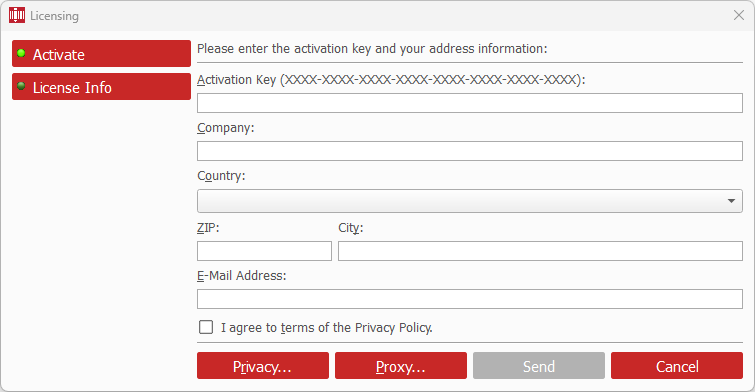
- Select Activate on the left side of the dialog.
- Enter your Activation Key.
- Enter your Company and select your Country.
- Enter the ZIP, City, and E-Mail Address. The email address may be used for license notifications.
- If your network requires a proxy server, select Proxy... and enter the connection settings.
- Accept the Privacy Policy and select Send.
A confirmation message appears when activation succeeds. Contact TEC-IT Support if an error occurs.
Barcode Studio may restart automatically after a license change, for example when the active edition changes.
Renew your Activation
First renew the subscription or purchase the required update. Barcode Studio checks for updated license information automatically on startup when an update is required. You can also update the local activation manually.
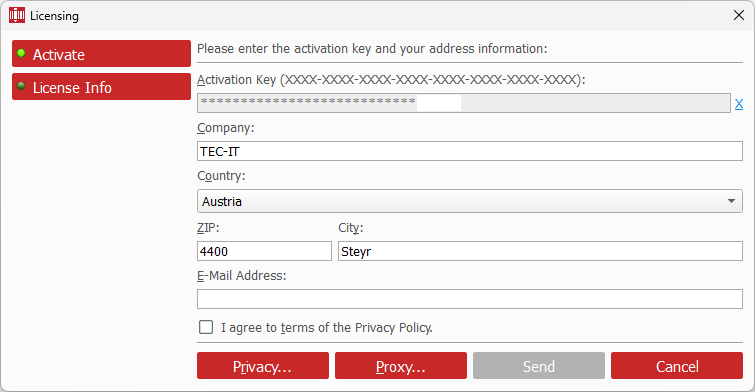
- Select Help > License....
- Update your contact details if they have changed.
- If the Activation Key has changed, select the X next to the existing key and enter the new key.
- Accept the Privacy Policy and select Send.
View License Info
Select License Info on the left side of the licensing dialog.
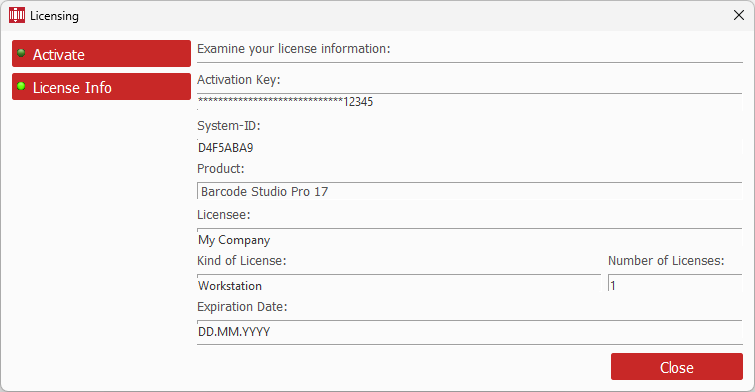
This page displays the Activation Key, System-ID, Product, Licensee, Kind of License, Number of Licenses, and Expiration Date. TEC-IT Support may ask for the System-ID when assisting with a licensing issue.
Temporary Trial Licenses
If no valid license is available, Barcode Studio offers a free trial with Pro functionality for a limited period.
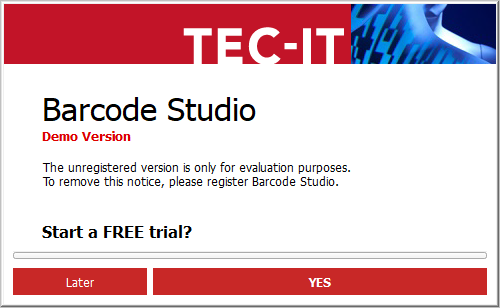
Select YES to request and activate the trial online. The confirmation shows the remaining trial period. Barcode Studio may restart automatically after the trial is activated.
Subscriptions
When a subscription is approaching its end or has expired, Barcode Studio shows a renewal prompt on startup.
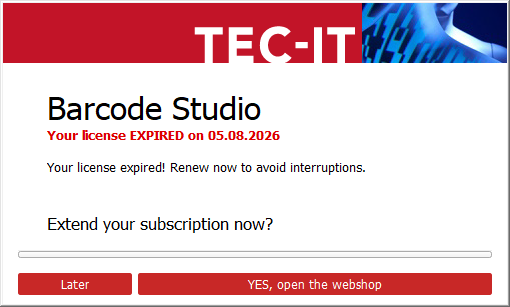
Select YES, open the webshop to open the renewal page, or Later to close the prompt. After renewal, Barcode Studio normally updates the activation during the next required online check. You can also update it manually as described in Renew your Activation.