Options
The Options dialog contains settings that apply throughout Barcode Studio. Access via Tools > Options....
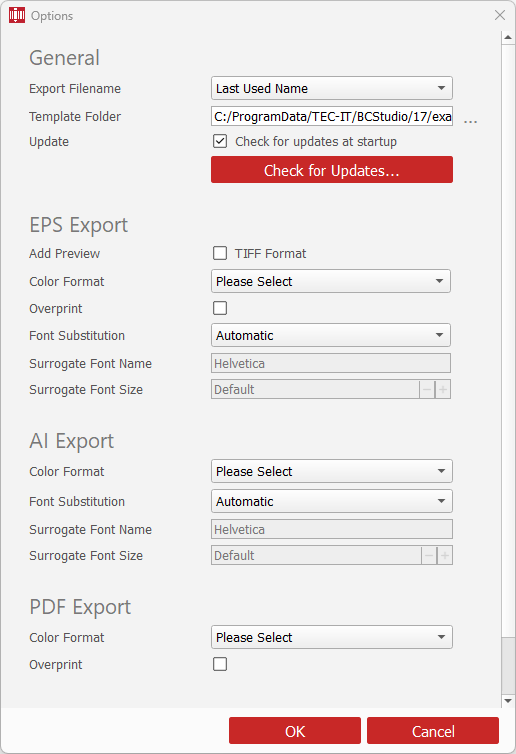
Changes are saved automatically in bcstudio.bcopt. Barcode Studio loads this
file from the following location:
- Windows, all users:
C:\ProgramData\TEC-IT\BCStudio\17\bcstudio.bcopt - Windows, current user:
<user_dir>\AppData\Local\TEC-IT\BCStudio\17\bcstudio.bcopt - macOS:
~/Library/Application Support/TEC-IT/BCStudio/17/bcstudio.bcopt
General
| Setting | Description |
|---|---|
| Export Filename | Selects the filename proposed when you export a code. Last Used Name reuses the most recently entered export filename. Like Data derives the filename from the barcode data. |
| Template Folder | Specifies the folder containing Barcode Studio settings files (.bc). Files in this folder appear in the Templates list on the Codes page. The installer sets the initial folder; you can select a different one. |
| Check for updates at startup | Checks for a newer Barcode Studio version whenever the application starts. |
| Check for Updates... | Starts an update check immediately. |
EPS Export
Use these settings to define the default color format, overprinting, font handling, and optional TIFF preview for exported EPS files.
| Setting | Description |
|---|---|
| Add Preview / TIFF Format | Adds a TIFF preview to the EPS file. This allows applications that cannot render EPS content to display a preview of the barcode. The EPS barcode itself remains vector-based. The preview increases the file size and can be left disabled for large batch exports. |
| Color Format | Selects CMYK, Grayscale, or RGB as the default color space. If Please Select remains selected, choose a color format in the export settings before exporting. |
| Overprint | Adds overprint instructions to the EPS output. Enable this only when required by your prepress workflow. |
| Font Substitution | Controls how fonts are handled in the exported EPS file. Automatic is the recommended default. See Font Substitution Modes. |
| Surrogate Font Name | Available with Fixed Font. Enter the PostScript name of the replacement font without spaces or other whitespace. |
| Surrogate Font Size | Available with Fixed Font. Select Default to use the font size from the barcode text settings, or specify a different size. |
Font Substitution Modes
| Mode | Description |
|---|---|
| None | Keeps the original font where possible and does not request a replacement font. |
| Automatic | Uses a suitable replacement font when necessary. This is the recommended default. |
| Fixed Font | Replaces the original font with the font specified under Surrogate Font Name. |
AI Export
Use these settings to define the default color format and font handling for exported AI files.
| Setting | Description |
|---|---|
| Color Format | Selects CMYK, Grayscale, or RGB as the default color space. If Please Select remains selected, choose a color format in the export settings before exporting. |
| Font Substitution | Uses the same font substitution modes as EPS. Automatic is the recommended default. |
| Surrogate Font Name | Available with Fixed Font. Enter the name of the replacement font without spaces or other whitespace. |
| Surrogate Font Size | Available with Fixed Font. Select Default to use the font size from the barcode text settings, or specify a different size. |
PDF Export
Use these settings to define the default color format and overprinting for exported PDF files.
| Setting | Description |
|---|---|
| Color Format | Selects CMYK or RGB as the default color space. If Please Select remains selected, choose a color format in the export settings before exporting. |
| Overprint | Adds overprint instructions to the PDF output. Enable this only when required by your prepress workflow. |