TFPrint TFS Job Files
A TFS XML job file supplies form layouts, records and output destinations in one file. Use it to generate several related outputs from one TFPrint call or to let the calling application describe the complete job in XML.
Select the format with -DT TFS and supply the job file with -D:
tfprint -D "C:\Jobs\shipping-job.xml" -DT TFS
-DT XML imports records for the form selected with -F. -DT TFS additionally selects forms and destinations from the job file. -C reads command-line parameters from an ASCII file; it does not read a TFS job file.
Job File Structure
TFSData is the root element. It contains one or more Job elements. Each job defines a separate form, record and destination context.
For one output, put Printer, Form and Records directly below Job. For several outputs, put these elements below Output instead and repeat Output as needed. Use one of these two structures within a job.
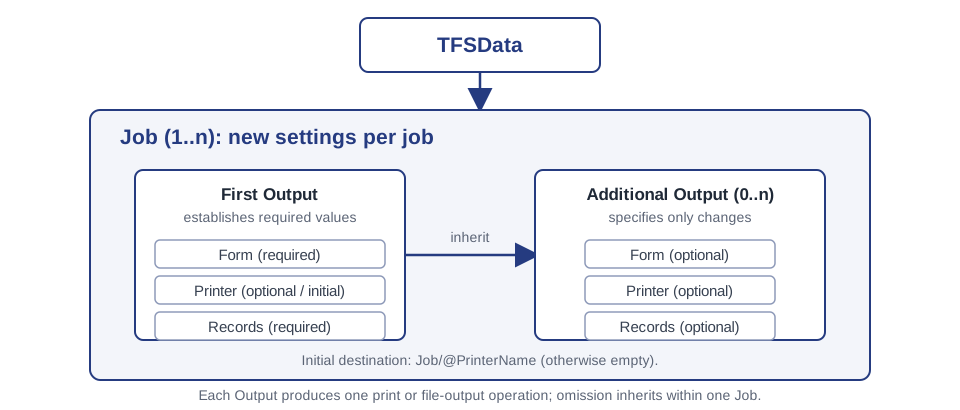
The first output of every job must supply Form and a non-empty Records element. Printer is optional: the initial destination can also come from Job/@PrinterName. Specify a destination explicitly when generating a file or when a particular printer is required.
XML Nodes
TFSData
The root element contains the jobs to process. Several Job elements are processed by the same TFPrint call.
<TFSData>
  <Job>...</Job>
  <Job>...</Job>
</TFSData>
An optional Global element is accepted only as the first child of TFSData, before the first Job. See Global before using it.
Job
Job groups one or more output operations. Each new job starts with new form, record and destination settings; it does not inherit them from a preceding job.
| Attribute | Purpose | Initial value |
|---|---|---|
PrinterName |
Initial destination for the job; a Printer element can replace it. |
Empty. |
Copies |
Initial number of job copies; Printer/@Copies can replace it. |
1. |
ClearRecordFields |
1: clear data field values before the next record; 0: retain omitted values. |
1. |
HandleEscapeSequences |
1 or 0; read from the job file. Do not rely on it for TFS record values, see TFPrint Compatibility. |
0. |
Write the values of Copies, ClearRecordFields and HandleEscapeSequences as numbers. Text values such as true or yes are read as 0; ClearRecordFields="true" therefore switches clearing off. Use a positive integer for Copies: a non-numeric value is read as 0 and rejected with error 13 (ERROR_INVALID_DATA). Use Printer rather than Job/@PrinterName to define the destination; the examples below do.
Output
Output describes one print or file-output operation. Its first occurrence supplies at least Form and Records. Additional outputs replace only the settings that change:
| Required result | Elements in the subsequent Output |
|---|---|
| Same form and data, different destination | Printer. |
| Same data and destination, different form | Form. |
| Same data, different form and destination | Printer and Form. |
| Different data | Records, plus Printer or Form if these also change. |
| Repeat the preceding output | An empty Output element. |
An output can also set ClearRecordFields and HandleEscapeSequences (1 or 0). If omitted, these attributes retain their preceding values within the job.
Printer
Printer/@Name selects the destination. Printer/@Copies specifies how many copies to produce for this output operation.
<Printer Name="\\printserver\shipping" Copies="2"/>
At the start of a job, the destination and copy count come from Job/@PrinterName and Job/@Copies; their initial values are empty and 1. A later Printer can omit either attribute to retain its current value. See Output Destinations for names and prefixes.
Printer/@JobSettings belongs to the broader server format and is not applied by TFPrint.
Form
Form selects a layout. Without -F, Name is the path to a stand-alone .tff file:
<Form Name="C:\Forms\ShippingLabel.tff"/>
With -F <repository>, Project and Name select a form in that repository:
<Form Project="Shipping" Name="PalletLabel"/>
The first output must establish the form name. A later Form can omit Name or Project to retain the corresponding attribute from the preceding form. To reuse the complete selection, omit Form instead. See Select Form Layouts.
Records
Records contains the Record elements for one output. Supply at least one record in the first output of each job. Add further records as needed. A later Records element replaces the record set; omitting it reuses the preceding set.
Record
Record contains one set of data field values. Its optional Copies attribute repeats that record; use a positive integer. The default is 1.
<Record Copies="3">
  <V Name="ArticleNo">1234567890</V>
  <V Name="Description">Shipping unit</V>
</Record>
Record copies and job copies are separate counts, and both apply to the output. Avoid conflicting copy settings in the job file, layout and -SDK; see Copies per Record, Copies and Duplex and the TFPrint Output Options.
V
V/@Name identifies the data field and the element text supplies its value. Use data field names from the selected layout. See Data Field Names and Additional Data Fields in an Import File.
Escape XML-reserved characters independently of TFPrint escape-sequence settings; for example, write & for an ampersand:
<V Name="CustomerName">Example & Company</V>
Global
The broader TFS format allows Global with V elements that define default field values. TFPrint does not apply those defaults to its output; put the required values in each Record instead.
If a job file contains Global, its position is restricted: below TFSData it must be the first child, before the first Job; within a job that uses Output elements it must precede the first Output. A Global element after a Job or after an Output causes error 13 (ERROR_INVALID_DATA). Leave Global out of job files written for TFPrint.
Inheritance and Defaults
Inheritance applies only within one Job:
| Setting | First output | Subsequent outputs |
|---|---|---|
Form |
Required; establish Name and, for a repository form, the project selection. |
Omission retains the preceding form; omitted form attributes retain their values. |
Records |
Required and non-empty. | Omission reuses the preceding record set. |
Printer / destination |
Optional; initially Job/@PrinterName, otherwise empty. |
Omission retains the preceding destination. |
| Job copies | Initially Job/@Copies, otherwise 1. |
Omitted Printer/@Copies retains the preceding count. |
| Record copies | Each record defaults to 1. |
Retained with the reused record set. |
ClearRecordFields |
Initially 1 unless set on Job or the first Output. |
An omitted attribute retains the preceding value. |
HandleEscapeSequences |
Initially 0 unless set on Job or the first Output. |
An omitted attribute retains the preceding value. |
An empty subsequent Output repeats the established form, destination and records. A new Job resets these definitions and must supply its own first Form and Records.
ClearRecordFields controls missing values between records. It does not control whether an omitted Records element reuses the complete record set. See Data Field and Escape Handling for the shared data rules.
Select Form Layouts
Stand-Alone Form Files
Omit -F and put the path to each stand-alone .tff file in Form/@Name. Prefer absolute paths when the working directory is not controlled:
tfprint -D "C:\Jobs\shipping-job.xml" -DT TFS
<Form Name="C:\Forms\ShippingLabel.tff"/>
Forms in a Repository
Pass only the repository filename with -F. Use Form/@Project and Form/@Name to select each layout:
tfprint -F "C:\Repos\Production.tfr" -D "C:\Jobs\shipping-job.xml" -DT TFS
<Form Project="Shipping" Name="PalletLabel"/>
Do not add the project and form name after the repository filename in this mode; the job file selects them. Several outputs can use different forms from the same repository while reusing records.
Output Destinations
Set each destination in Printer/@Name or establish the initial destination with Job/@PrinterName. An unprefixed name selects an operating-system printer: a Windows printer on Windows or a CUPS queue on Linux.
A prefix followed by : selects a file or another destination type. These prefixes are distinct from the -OT command-line values:
| Prefix | Destination | Example or note |
|---|---|---|
| None | Operating-system printer. | \\printserver\shipping on Windows or shipping as a Linux CUPS queue. |
REPO: |
Printer configured in the repository. | REPO:ShippingPrinter; an empty suffix selects the repository's default printer. |
PDF: |
PDF file. | PDF:C:\Output\label.pdf. |
PDFA: |
PDF/A file. | PDFA:C:\Output\label.pdf. |
ZUGFERD: |
ZUGFeRD output. | ZUGFERD:C:\Output\invoice.pdf; configure its associated options in Output Options. |
PS: |
PostScript file. | PS:C:\Output\label.ps. |
HTML: |
HTML output. | HTML:C:\Output\label.html; the pages are written to the directory label_pages beside the index file, see Output Target. |
TXT: |
Text file. | TXT:C:\Output\label.txt. |
ZPL: |
ZPL-II file. | ZPL:C:\Output\label.zpl. |
SVG: |
SVG file. | SVG:C:\Output\label.svg. |
SVGZ: |
Compressed SVG file. | SVGZ:C:\Output\label.svgz. |
IMGBMP:, IMGGIF:, IMGJPG:, IMGPCX:, IMGPNG:, IMGTGA:, IMGTIF: |
Image file in the selected format. | For example, IMGPNG:C:\Output\label.png; IMGTIF: creates single-page TIFF output. |
IMGMULTITIF: |
Multipage TIFF file. | IMGMULTITIF:C:\Output\labels.tif. |
PSPRINTER: |
PostScript printer. | Prefix the printer or queue name, for example PSPRINTER:shipping. |
TXTPRINTER: |
Text printer. | Prefix the printer or queue name, for example TXTPRINTER:shipping. |
ZPLPRINTER: |
ZPL printer on Windows. | ZPLPRINTER:shipping; unavailable on Linux. |
PDFFILE: and ZPLFILE: are also accepted as aliases of PDF: and ZPL: in destination names. Use the shorter forms in new job files. PSFILE:, WIN32: and CUPS: are not destination prefixes; use PS: for PostScript files and an unprefixed name for an operating-system printer.
Prefix matching is case-insensitive. Preserve the filename or printer name as required by the destination system. Use absolute output paths when the working directory is not controlled; substitute Linux paths such as /tmp/label.pdf for the Windows paths in the table.
In TFS mode, -O and -OT do not replace destinations in the job file; see TFPrint Compatibility.
Output settings and runtime requirements are shared with the other interfaces; see Output Options, Windows Deployment and Linux Deployment.
TFPrint Compatibility
The TFS format is shared with TFORMer Server, but a server job file can contain settings that TFPrint does not use, and some command-line options are treated differently in TFS mode:
| Job-file feature or command-line option | TFPrint behavior |
|---|---|
Printer, Form and Records directly below Job |
Supported for a single output. |
Several Job elements |
Supported; definitions start again for every job. |
Several Output elements |
Supported; omitted settings are inherited within the job. |
Stand-alone form in Form/@Name |
Supported when -F is omitted. |
Repository Form/@Project and Form/@Name |
Supported when -F supplies the repository file. |
Global |
Accepted only as the first child of TFSData or before the first Output of a job; its field values are not applied to TFPrint output. |
Printer/@JobSettings |
Accepted, but not applied by TFPrint. |
ClearRecordFields on Job or Output |
Controls clearing of data field values between records (1 or 0); initially 1 for each job. |
HandleEscapeSequences on Job or Output |
Read from the job file. Do not rely on backslash escape conversion in TFS record values. |
-O, -OT |
Not applied; the destinations come from the job file. A supplied -OT is still validated: a file-output type without -O is a parameter error before the job file is processed. Leave both out of TFS commands. |
-DO CL..., -DO ESC... |
Replaced for every output by the job file's ClearRecordFields and HandleEscapeSequences values. |
-SDK |
Supplies shared print options for the output operations. |
-OO DXN, DXH, DXV and TC |
Supplies duplex and tray-control settings; availability depends on the output type. |
-OO CP, SR, SC, JT |
Does not set copies, start row, start column or job title in TFS mode; use Job/@Copies, Printer/@Copies and Record/@Copies for copies. |
-DO XSLT:file |
Does not transform TFS input; transform it externally first if necessary. |
| Automatic XSD validation | Not performed. |
TFS records use TFORMer XML data field values. See XML Files for the shared data format and Output Options for supplying shared print options. Keep ordinary XML escaping, such as &, separate from backslash escape sequences.
Do not rely on the conversion of backslash escape sequences such as \n in TFS record values, regardless of HandleEscapeSequences or -DO ESC. Supply line breaks and other special characters directly in well-formed XML and check the resulting output for your layout.
Validation and Schema
TFPrint expects the final TFSData structure. It does not apply the XSD validation or automatic XSL transformations used by TFORMer Server. If input uses another structure, transform it before invoking TFPrint with -DT TFS.
Use these rules when generating job files:
- Match the file encoding to its XML declaration; UTF-8 is recommended.
- Use absolute paths for the job file, stand-alone layouts and file outputs when the working directory is not controlled.
- Use the element and attribute names shown here and the data field names from the selected layout. Structural names including
TFSData,Job,Output,Form,PrinterandRecordsare matched without regard to case; write attribute names and data field names exactly as shown and as defined in the layout. - Keep
Printer,FormandRecordsin the order shown in the examples for consistency. - Supply
Formand non-emptyRecordsin the first output of every job. - Establish a destination for each file output or reuse an already established destination within the job.
- Inspect TFPrint's exit status and error output; see Errors and Exit Codes. Violations of these rules are reported as runtime errors, for example an empty
Recordselement when the temporary data file is saved, not as a job-file validation report.
The complete repository-based XML job file schema is part of the TFORMer Server User Manual. That schema also covers server processing, multiple jobs, multiple outputs and inherited definitions; it is a structural reference rather than an exact list of TFPrint features.
The formal repository-based schema requires Form/@Project. TFPrint also accepts a stand-alone .tff path in Form/@Name when -F is omitted. That stand-alone form does not validate against the unchanged repository-based schema. Observe TFPrint Compatibility when validating files with that schema.
Examples
The following examples describe the input structure. Replace their paths, layouts, fields and destinations with those used by your application. A printer destination submits output to that printer; use file destinations when checking a job without printing.
One Stand-Alone Form to PDF
Save this as C:\Jobs\shipping-job.xml:
<?xml version="1.0" encoding="UTF-8"?>
<TFSData>
  <Job>
    <Printer Name="PDF:C:\Output\shipping-label.pdf" Copies="1"/>
    <Form Name="C:\Forms\ShippingLabel.tff"/>
    <Records>
      <Record>
        <V Name="ArticleNo">1234567890</V>
        <V Name="Description">Shipping unit</V>
      </Record>
    </Records>
  </Job>
</TFSData>
tfprint -D "C:\Jobs\shipping-job.xml" -DT TFS
For a repository form, replace Form with <Form Project="Shipping" Name="PalletLabel"/> and use:
tfprint -F "C:\Repos\Production.tfr" -D "C:\Jobs\shipping-job.xml" -DT TFS
Reuse Records for Several Outputs
This job uses the same records for two stand-alone form layouts and two Windows printers. The second output replaces the form, destination and copy count while retaining the record set:
<?xml version="1.0" encoding="UTF-8"?>
<TFSData>
  <Job>
    <Output>
      <Printer Name="\\printserver\label-printer-1" Copies="1"/>
      <Form Name="C:\Forms\ShippingLabel.tff"/>
      <Records>
        <Record>
          <V Name="ArticleNo">1234567890</V>
          <V Name="Description">Shipping unit</V>
        </Record>
      </Records>
    </Output>
    <Output>
      <Printer Name="\\printserver\label-printer-2" Copies="2"/>
      <Form Name="C:\Forms\ArchiveLabel.tff"/>
    </Output>
  </Job>
</TFSData>
For file output, replace the two printer names with distinct file destinations, for example PDF:C:\Output\shipping-label.pdf and PDF:C:\Output\archive-label.pdf. For repository forms, supply the repository with -F and replace both Form elements with Project and Name selections.
Several Independent Jobs
Each job supplies its own form, records and destination. Here both jobs create PDFs in the same TFPrint call:
<?xml version="1.0" encoding="UTF-8"?>
<TFSData>
  <Job>
    <Printer Name="PDF:C:\Output\first.pdf"/>
    <Form Name="C:\Forms\ShippingLabel.tff"/>
    <Records>
      <Record><V Name="ArticleNo">1234567890</V></Record>
    </Records>
  </Job>
  <Job>
    <Printer Name="PDF:C:\Output\second.pdf"/>
    <Form Name="C:\Forms\ShippingLabel.tff"/>
    <Records>
      <Record><V Name="ArticleNo">9876543210</V></Record>
    </Records>
  </Job>
</TFSData>
tfprint -D "C:\Jobs\two-jobs.xml" -DT TFS
The first job's definitions are not available to the second job.