Quick Start: Create a PDF with .NET
Create a product-label PDF, then change its product name and run the example again. The Windows .NET/C# application uses this workflow:
- Load the supplied
ProductLabel.tfflayout. - Provide
ProductNameandArticleNumber. - Generate the PDF.
Check the Prerequisites
You need:
- 64-bit Windows;
- the .NET 8 SDK for Windows x64;
- the Microsoft Visual C++ Redistributable for x64; and
- Internet access to NuGet.org.
Download and Open the Example
Download the complete example (ZIP) — includes the program, project, ProductLabel.tff layout and README.1
Extract the ZIP into a folder of your choice.
Build and Run
Run these commands in PowerShell from the extracted folder:
dotnet restore .\TFORMerProductLabel.csproj `
  --source https://api.nuget.org/v3/index.json
dotnet build .\TFORMerProductLabel.csproj --configuration Release --no-restore
dotnet .\bin\Release\net8.0\win-x64\TFORMerProductLabel.dll
Restore downloads TECIT.TFORMer version 9.3.0.32822 and its dependencies from NuGet.org, as specified by the project.
Check the Result
Open the PDF at the path printed after Created PDF:. Each run saves ProductLabel.pdf in a new folder below %TEMP%\TFORMerProductLabel.
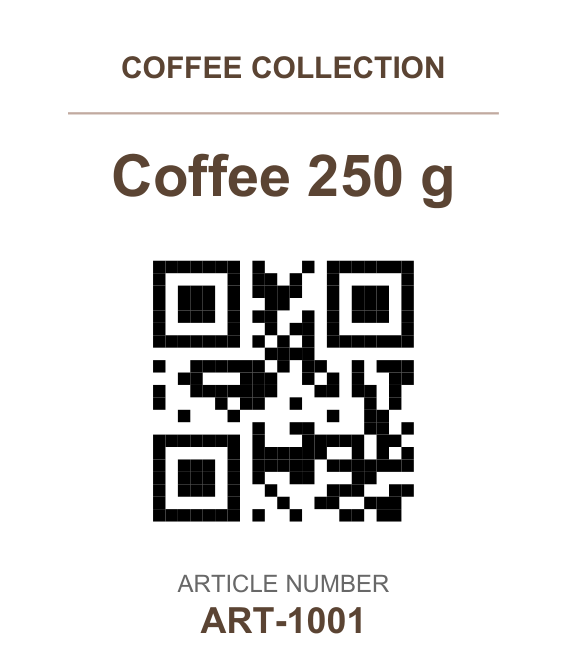
The label shows Coffee 250 g and ART-1001; its QR Code contains the same article number. This is an internal identifier, not an EAN, GTIN, or GS1 value.
Without license configuration, TFORMer may mark the PDF as evaluation output.
Change the Product Name
Open Program.cs and change only the value Coffee 250 g in this line:
record.Data.Add("ProductName", "Coffee 250 g");
Keep the field name ProductName and use a short name that fits the label. Run the build and application commands again; the previous PDF remains unchanged.
Complete Program
The project copies ProductLabel.tff beside the application. The layout uses Arial and the two data fields shown below.
Show complete Program.cs
Linked SDK names open the API reference.
using TECIT.TFORMer;

internal static class Program
{
    private static int Main()
    {
        string layoutPath = Path.Combine(
            AppContext.BaseDirectory, "ProductLabel.tff");
        if (!File.Exists(layoutPath))
        {
            Console.Error.WriteLine($"Layout file not found: {layoutPath}");
            return 1;
        }

        string outputDirectory = Path.Combine(
            Path.GetTempPath(),
            "TFORMerProductLabel",
            $"{DateTime.UtcNow:yyyyMMdd-HHmmss}-{Guid.NewGuid():N}");
        Directory.CreateDirectory(outputDirectory);
        string outputPath = Path.Combine(outputDirectory, "ProductLabel.pdf");

        try
        {
            using Job job = new();
            job.RepositoryName = layoutPath;

            // These field names match the supplied ProductLabel.tff layout.
            JobDataRecordSet data = new();
            Record record = new();
            record.Data.Add("ProductName", "Coffee 250 g");
            record.Data.Add("ArticleNumber", "ART-1001");
            data.Records.Add(record);
            job.JobData = data;

            job.PrinterType = PrinterType.PdfFile;
            job.OutputName = outputPath;
            job.Print();

            if (!File.Exists(outputPath) ||
                new FileInfo(outputPath).Length == 0)
            {
                Console.Error.WriteLine(
                    $"TFORMer did not create a non-empty PDF: {outputPath}");
                return 1;
            }

            Console.WriteLine($"Created PDF: {outputPath}");
            return 0;
        }
        catch (TFORMerException exception)
        {
            Console.Error.WriteLine($"TFORMer error: {exception.Message}");
            return 1;
        }
    }
}
Continue in the API Guide
Continue with the .NET API guide for assembly selection, the general workflow and additional examples.
-
When reading an offline PDF copy, keep its accompanying
downloadsfolder beside it so that the example link works. ↩